Features
Everything Leo Explorer does
Written plainly, for version 1.0.7. If it isn’t on this page, Leo Explorer doesn’t do it yet.
Windows, panes and tabs
One or two file displays per window, each with its own tabs, in as many windows as you like.
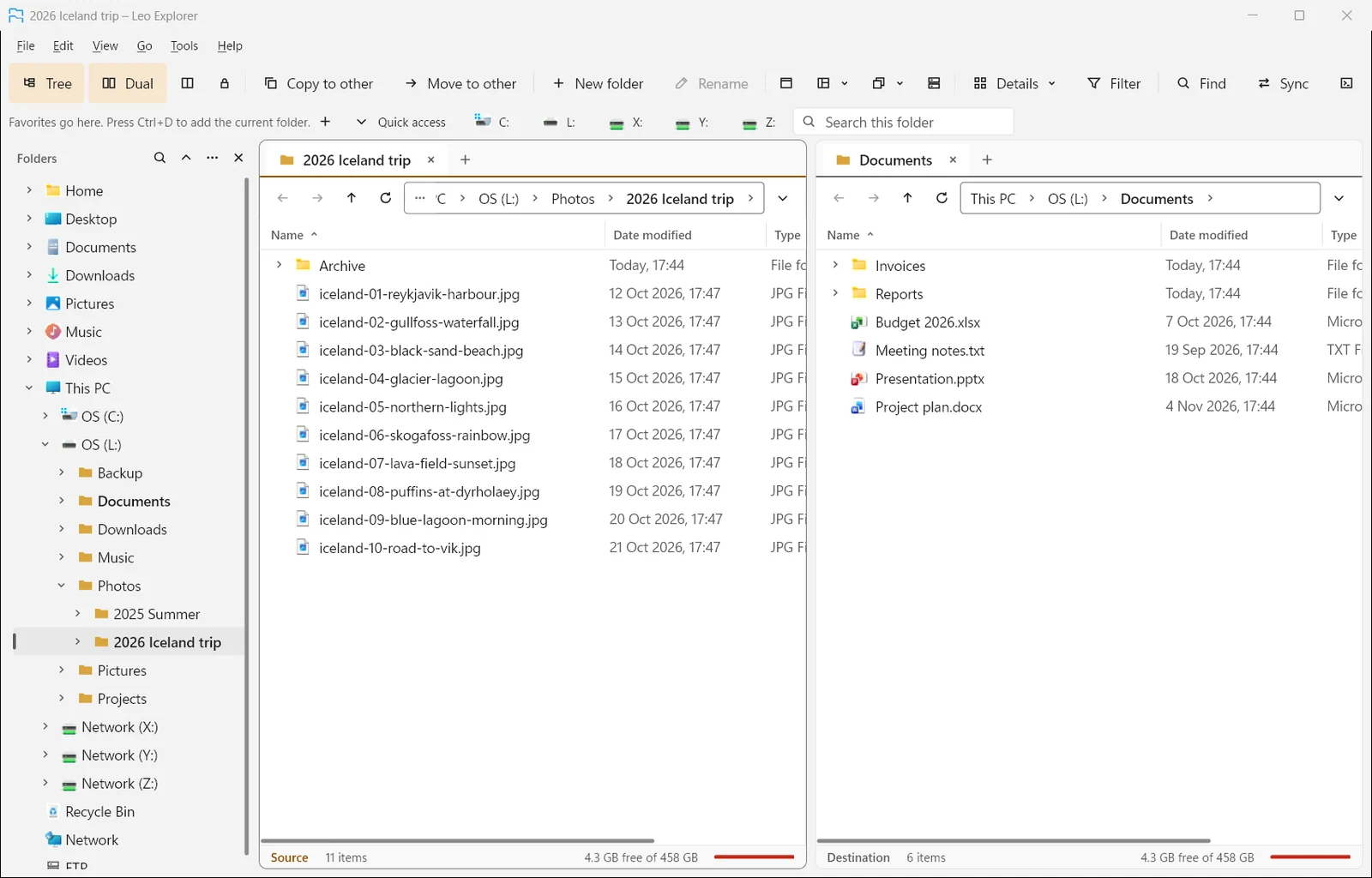
- One or two displays per window (F6), side by side or stacked (Ctrl+F6). Drag the bar between them; double-click it for half each.
- Tabs in each display: new (Ctrl+T), close (Ctrl+W), reopen the last closed (Ctrl+Shift+T) or any of the last 20.
- Drag tabs between displays and windows, lock a tab to its folder, and save and reopen groups of tabs.
- Several windows (Ctrl+N), and Win+Shift+E opens one from anywhere in Windows.
- Navigation lock: both displays go into folders of the same name, and up, together.
- Six window styles (such as Two side by side, or Pictures and a preview), plus your own.
- Layouts that keep windows with their tabs, folders and places on the screen.
- Once installed, Leo Explorer opens folders, drives, Win+E and folders from Run instead of File Explorer. Preferences gives them back whenever you like.
Getting around
Find anything by typing, a clickable path, a folder tree and favorites.
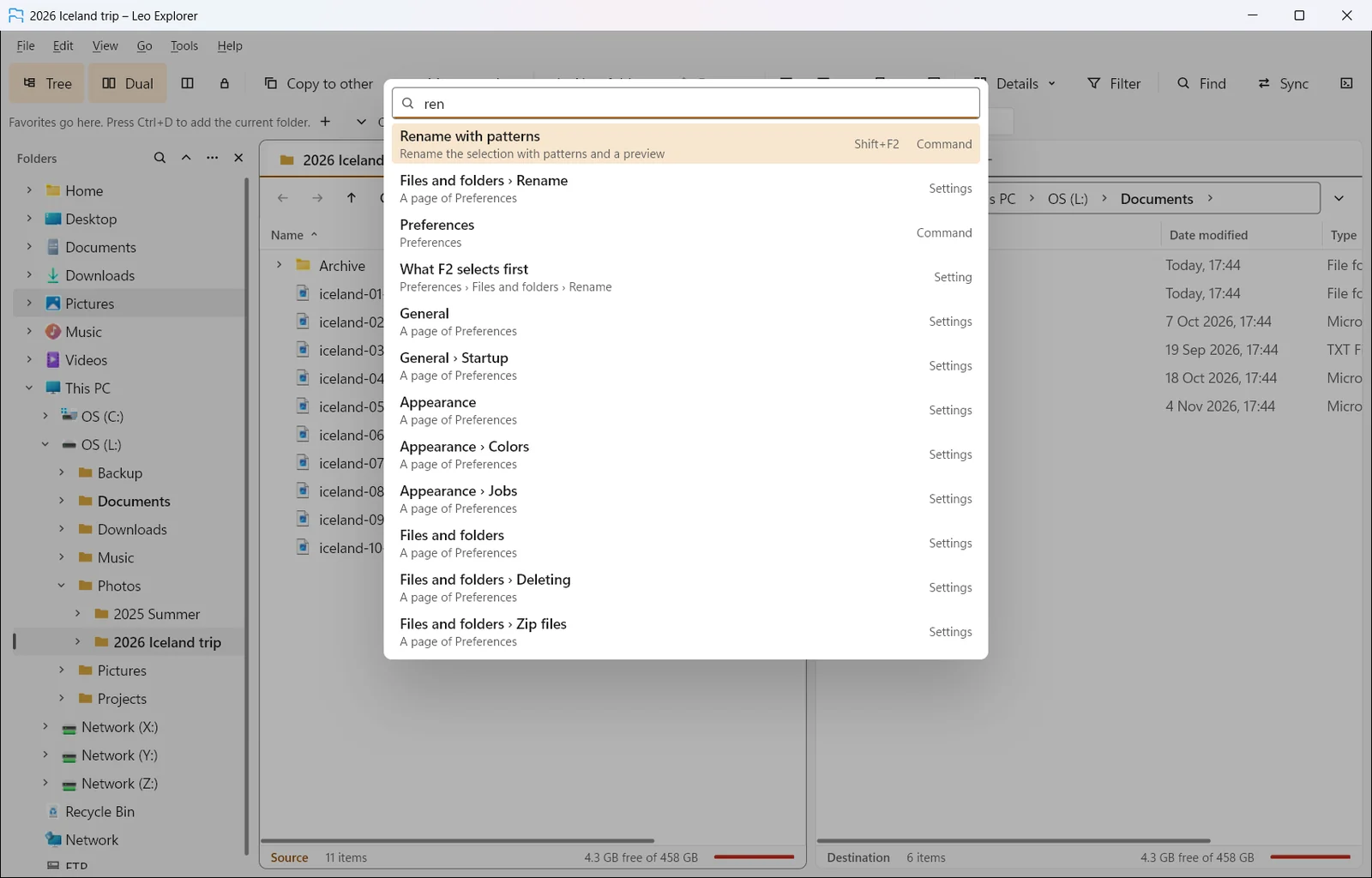
- Find anything (Ctrl+Shift+P): commands with their keys, Preferences options, open tabs, favorites and recent folders.
- Start here: on the first start, choose Simple (one folder, a short toolbar) or Two folders, and see the five keys worth knowing.
- A tip of the day, once a day, about something Leo Explorer can do. Easy to turn off.
- A clickable path with a menu of subfolders at each step; type a path with suggestions (F4 or Ctrl+L).
- Go to path (Ctrl+G): paste any folder to open it, or a file’s path to open its folder with the file selected.
- Aliases such as /downloads and /desktop, and environment variables in paths.
- Back, Forward and Up with per-tab history, and a list of recent folders.
- A folder tree with Favorites, Recent, OneDrive, FTP sites and Libraries, or a tree beside each display. Make it as wide as you like; Tab moves between the displays and the tree.
- A favorites bar (Ctrl+D adds the folder), a drives bar that shows drives as soon as they’re plugged in, and Quick access.
Seeing your files
Details, list, icons, tiles and thumbnails, with more than 150 extra columns.
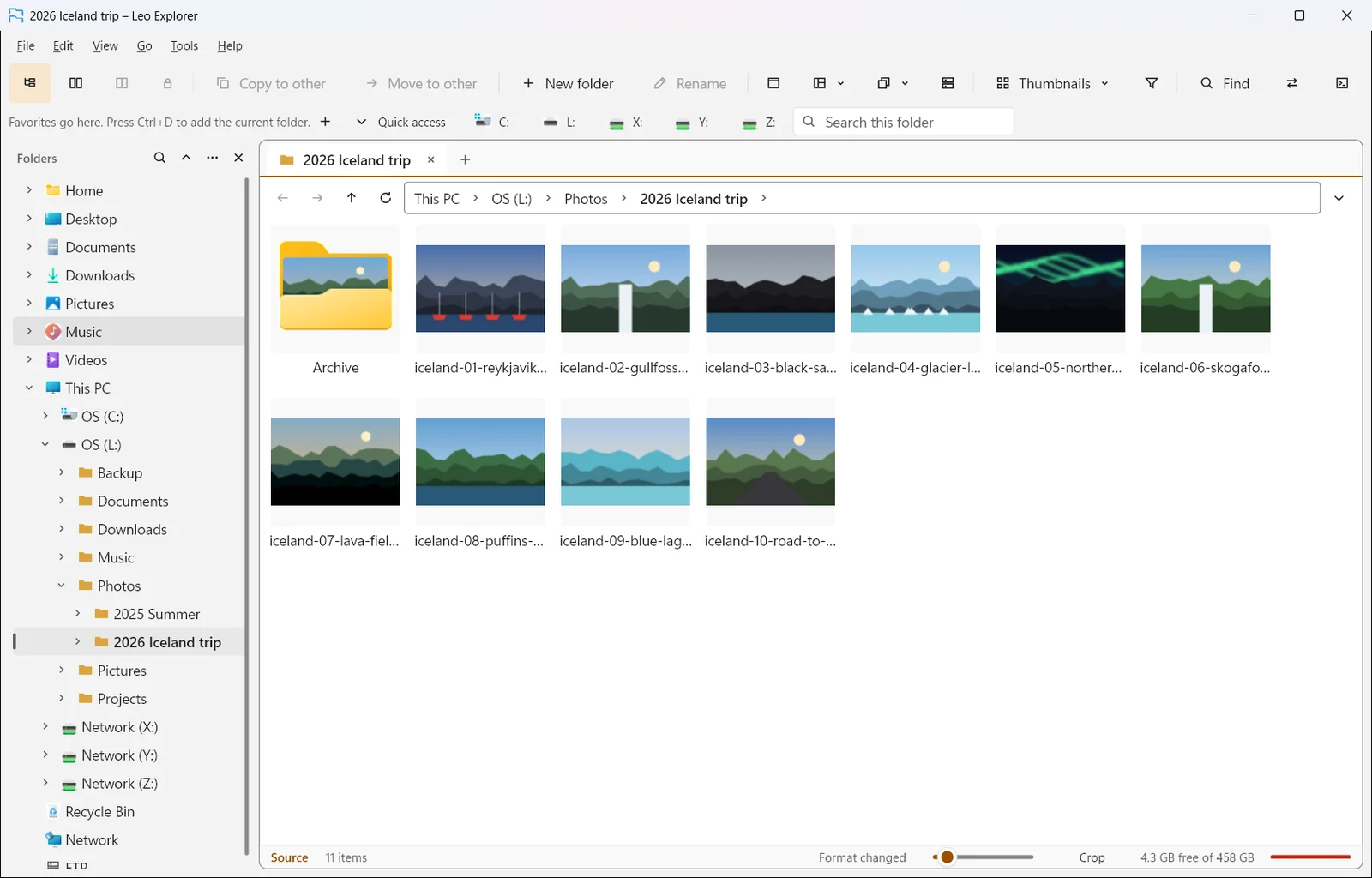
- Details, list, small and large icons, tiles and thumbnails; Ctrl+mouse wheel to zoom; thumbnails that fit or fill their squares.
- Icon overlays in the list and the folder tree, as in File Explorer: TortoiseGit’s status on a repository’s files and folders, OneDrive’s, a shortcut’s arrow.
- More than 150 extra columns: pictures and camera, music and video, documents, programs, drives and storage.
- Checksum columns: MD5, SHA-1, SHA-256, SHA-512, BLAKE3 and CRC32.
- Sort by several columns and group by any of them, with groups that fold. The sort you pick in a tab comes back after a restart.
- Flat view: every file in the subfolders in one list.
- Folder sizes as folders open, or on request.
- Saved folder formats: a folder (and its subfolders, or every folder matching a pattern) keeps its view, columns and sort.
- A filter bar (*) with regular expressions and saved patterns, and a Types menu (Shift+F5).
Selecting
Select by pattern, by filter, or by how two folders differ.
- Click, Ctrl/Shift-click and rubber band; Ctrl+A, Ctrl+I to invert, Ctrl+Space or Insert to toggle.
- Select by pattern, such as *.jpg; IMG_2026*.
- Select what’s also in, missing from, or newer in the other display.
- Select by type, empty folders, or what was selected before.
Copying, moving and deleting
Jobs that queue, pause and resume, with clear choices when a name is taken.
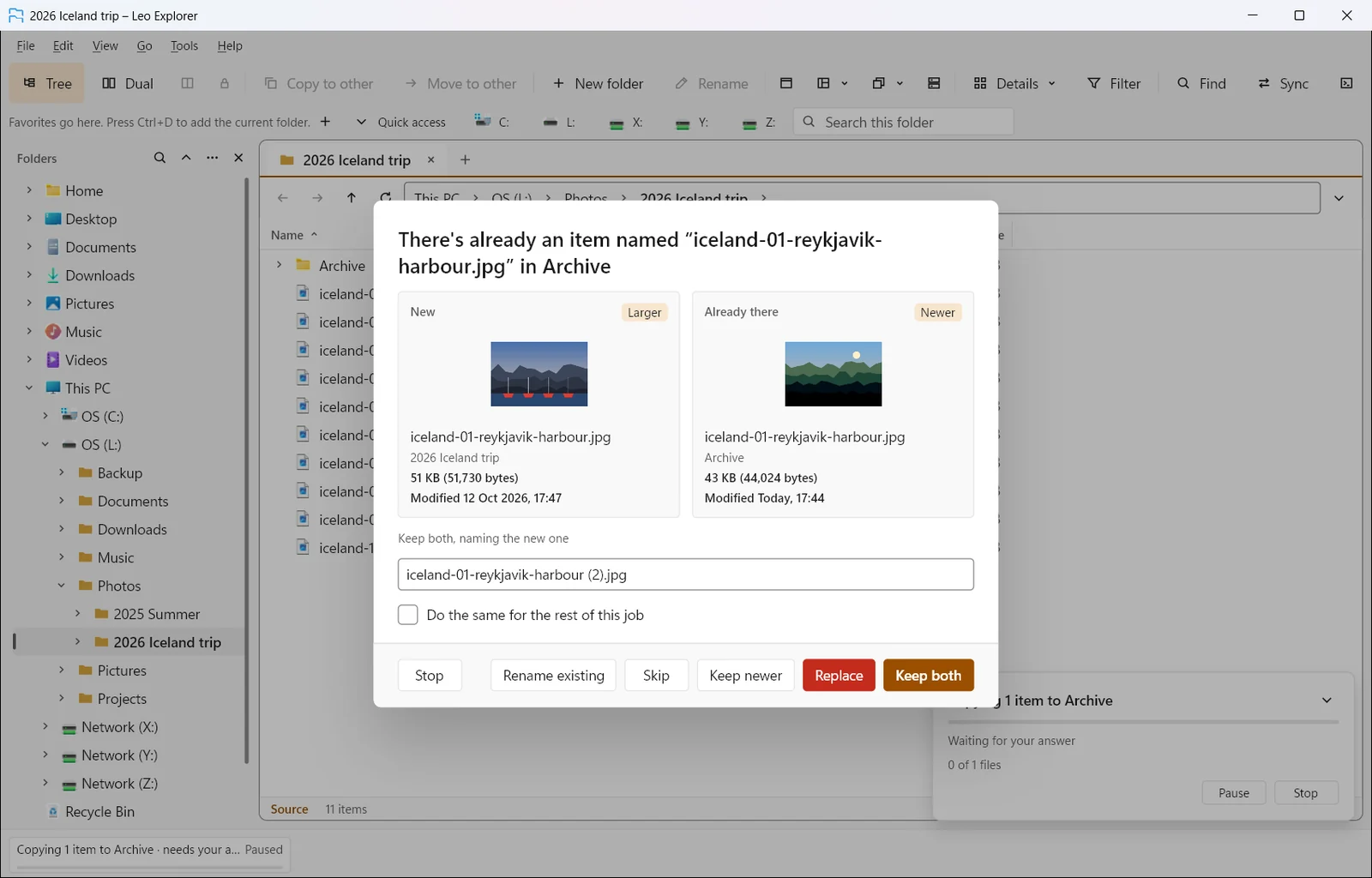
- Copy and move to the other display (Ctrl+Shift+C, Ctrl+Shift+M), by clipboard, or by drag and drop.
- Jobs queue per physical disk, show speed and time left, and can be paused, resumed, reordered or stopped.
- When a name is taken: replace, keep both, rename existing, keep newer, or skip, once or for the whole job.
- Copy with options: only some names, only newer files, keep dates, attributes, permissions and streams.
- A file that’s in use doesn’t stop a move: Leo Explorer tries again, carries on with the rest, and says which program has it open.
- A folder full of links comes along as links, so a project’s node_modules can move without a pointless administrator prompt.
- Delete to the Recycle Bin or permanently, and securely wipe files that must not come back.
- Long paths over 260 characters, and protected places with Windows’ administrator prompt.
Undo and the file log
Ctrl+Z puts back copies, moves, renames, deletions and more.
- Ctrl+Z undoes the last file operation: copies, moves, renames, deletions (from the Recycle Bin), new folders and attribute changes.
- An undo list to undo several at once.
- A searchable file log of what was done, which you can save as CSV.
Renaming
Rename with patterns: many files at once, with a live preview and undo.
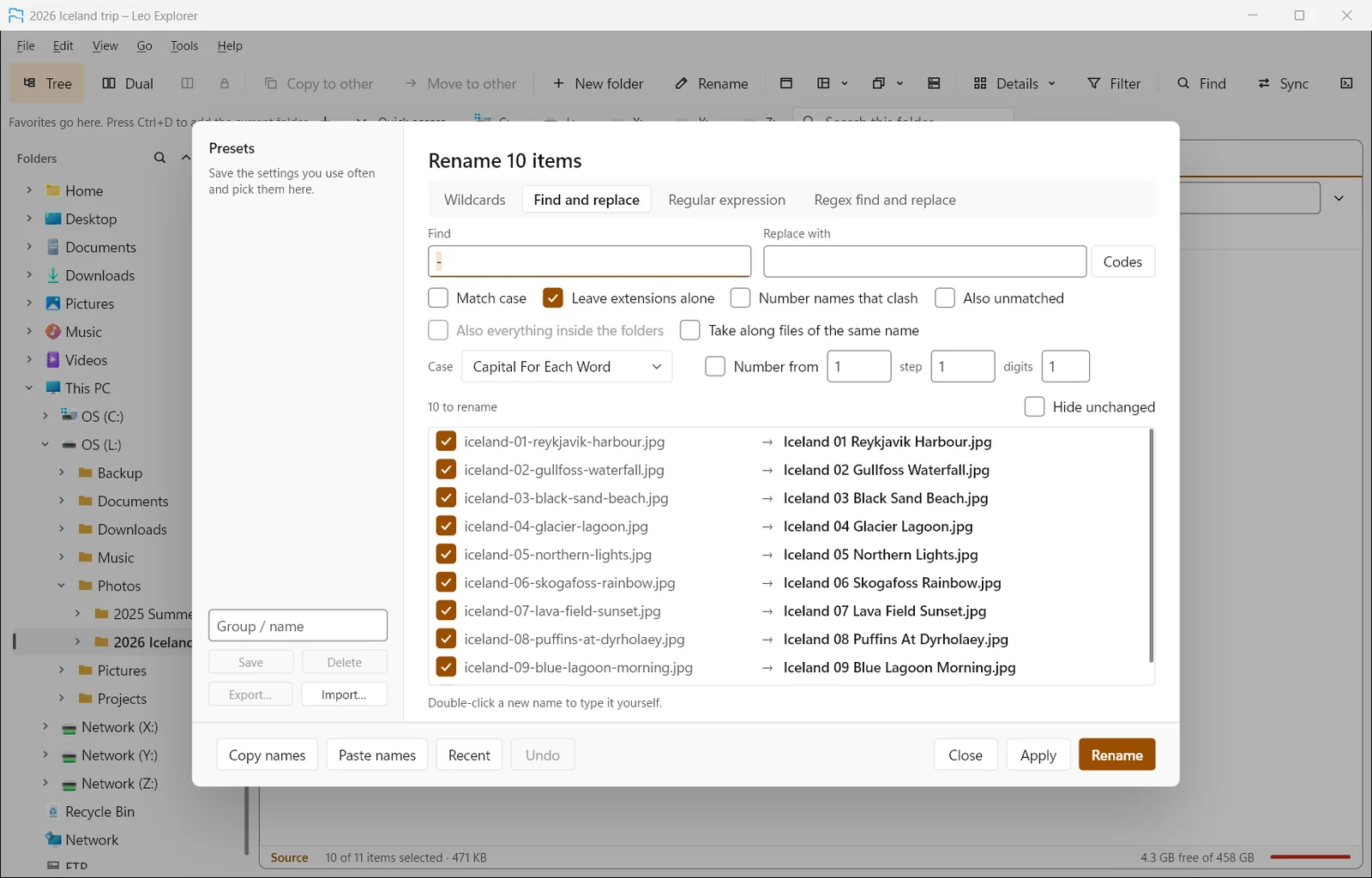
- Rename in place (F2), or many files with Rename with patterns (Shift+F2).
- Wildcards, find and replace, regular expressions, case changes and numbering.
- Codes for photo details (date taken, camera), music tags (artist, album, title, track) and dates.
- A live preview where you can untick files or type a name by hand.
- Rename into new subfolders, and rename matching files together (photo.jpg with photo.xmp).
- Presets you can import and export, and recent renames to reuse.
Folders, attributes and links
Many folders at once, attributes and dates, and every kind of link.
- Make one or many folders at once, nested paths, and numbered ranges (Photos 01 to 12).
- Change attributes and created or modified dates, for the contents of folders too.
- Make hard links, symbolic links and junctions.
Finding, comparing, cleaning up
Search, synchronize two folders and find duplicates by content.
- Find files by name, text inside, date, size or type, in several folders at once, with the Windows search index for speed.
- When Everything is running, Find asks it by name instead of searching every folder, so a whole-drive search is quick again. Every result is still checked against the filters you asked for.
- Text, wildcards, regular expressions, or words like a web search (+ must be there, - mustn’t).
- Search inside zip, 7z and RAR files.
- Filters for Find, Select and Synchronize can test any column, from bit rate to a checksum.
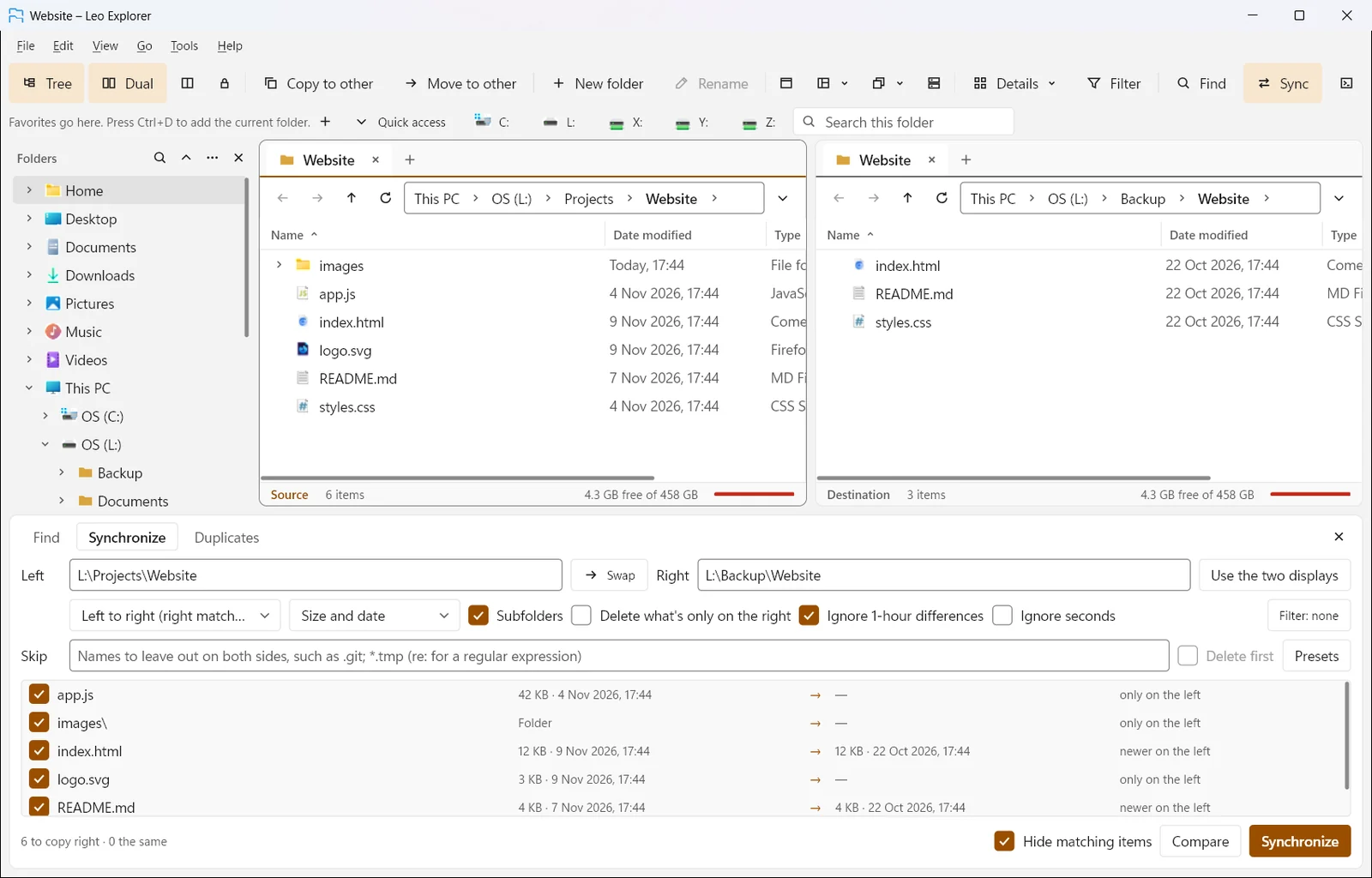
- Synchronize two folders one way or both ways, by date, size or contents, with a list of what will happen first.
- Find duplicate files by contents, name or size, and keep the newest, oldest or first of each set.
- Collections: lists of files from anywhere that you keep and come back to.
Pictures, previews and details
A preview pane, a picture viewer, conversion and metadata editing.
- A preview pane (Alt+P) for pictures, text, PDF, Office and HTML files, and a hex view for everything else.
- Quick peek with the Space bar: arrow keys scroll, + and − zoom, Page Up and Page Down go to the previous and next file.
- A picture viewer with zoom, turning, a slideshow and full screen.
- Convert pictures to JPEG, PNG, BMP or TIFF, one or many at once.
- Edit details such as title, tags, rating, date taken, artist and album, for many files at once.
- Colour labels, and custom properties of your own (a client, a status, hours) that show as columns.
- OneDrive-aware: previews and searches leave online-only files alone, so nothing downloads by accident.
Works with PowerToys
When Microsoft PowerToys is installed, Leo Explorer uses Peek, its previewers, New+ and Registry Preview.
- Space opens PowerToys Peek on the selected files, the same quick look as in File Explorer.
- The preview pane uses PowerToys’ previewers for Markdown, source code, SVG, PDF, G-code and QOI files.
- File › New lists your New+ templates, files and whole folders, ready to rename.
- Open in Registry Preview shows what a .reg file would change before you merge it.
- Each part follows whether that module is on in PowerToys, and Preferences › Tools › PowerToys turns any of them off.
Archives
Zip, 7z and tar open as folders; RAR opens read only.
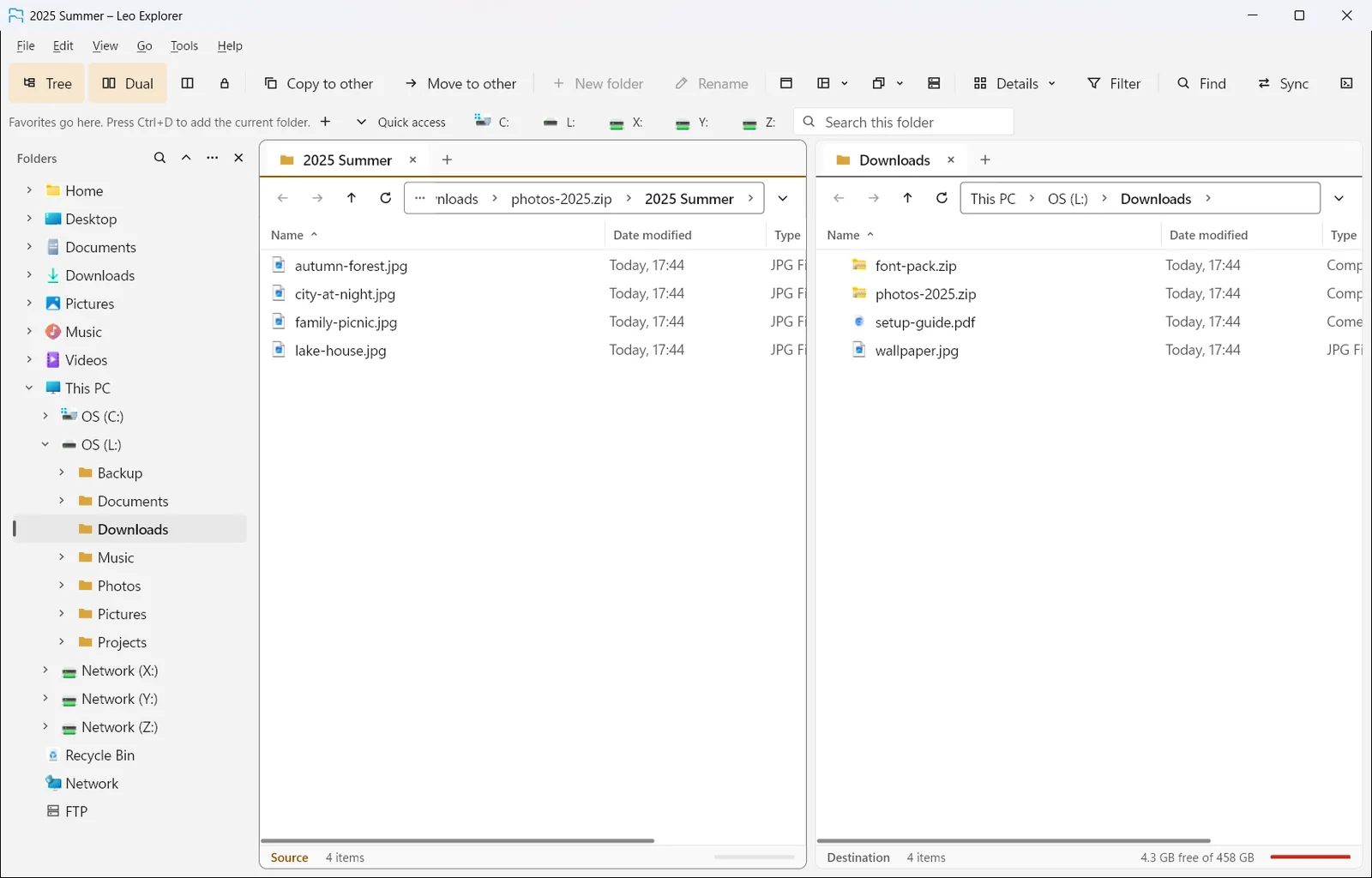
- Zip, 7z, tar, tar.gz, tar.bz2, gzip and bzip2 open as folders; RAR opens read only.
- Make zip, 7z, tar.gz, tar.bz2 or tar archives.
- Passwords for zip and 7z with AES-256; 7z hides the file names too.
- Extract here or to the other display, or open a file straight from an archive.
Servers: FTP, FTPS and SFTP
Servers browse like folders, with resumable, parallel transfers.
- Type an address such as sftp://me@server/folder, or use Quick connect.
- Copy, move, rename, delete and make folders on servers; resume a transfer that broke off.
- Four files at a time by default, each over its own connection (1 to 8 in Preferences).
- An address book with folders and saved sites, also in the folder tree; log in with a password or an SSH key file.
- A live FTP log of what Leo Explorer and the server say to each other.
- Passwords kept, if you choose, in Windows Credential Manager. New servers show their key fingerprint, and a changed key is flagged.
Making it yours
Toolbars, commands, hotkeys, themes, window styles and languages of your own.
- A menu bar with every command, its icon and its keys, and toolbars you edit in place in Customize mode.
- Toolbars that fit the window: less used buttons shrink to icons, then move to a More button.
- Your own commands that run programs with the selected files or folders.
- When Everything, PowerToys or other free tools are installed, Tools shows what each one adds and opens the tool’s own page so you can get it from the maker.
- Command prompt or PowerShell here, as yourself or as administrator. Leo Explorer opens with your own rights; Run as administrator gives full rights for 5, 15 or 60 minutes.
- Hotkeys for any command, in the file list, the tree, the viewer, or anywhere in Windows.
- Light, dark or following Windows; an accent colour, fonts, type size and row density; themes you can save and share.
- Seven languages: English, Deutsch, Français, Español, Português (Brasil), 日本語 and 简体中文 (Tools › Language).
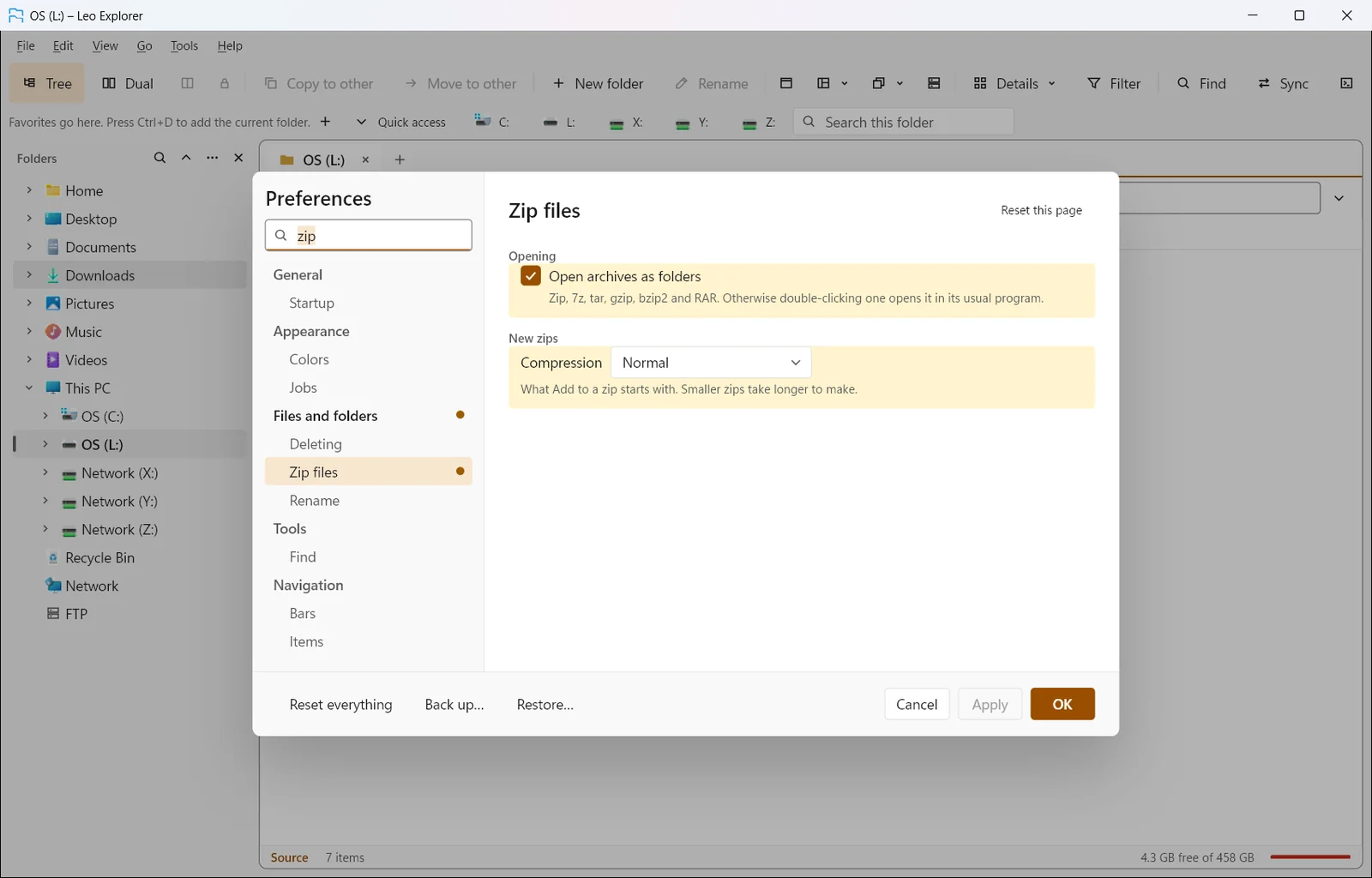
- Preferences with search, a reset for any single option, and backup and restore of all settings.
- Export a folder list as CSV or text, print it, or copy names, paths and columns with Copy special.
Command line
Control a running Leo Explorer from scripts and other programs.
- leo-explorer --send … goes to a folder, selects by pattern, runs a command, opens a layout, and more.
Privacy and your data
Everything stays on your PC.
- No account, no sign-in, no cloud service and no usage tracking.
- Settings, favorites, folder formats, collections, labels and the file log live in one file in your Windows profile, with backup and restore.
- Server passwords and key passphrases are kept only if you ask, in Windows Credential Manager.
- It goes online only to open a server folder or check for updates. Updates install only if they’re signed with Leo Explorer’s own key.
Not in this version
Said plainly, so nobody is disappointed:
- Scripting and add-ins.
- Adding files to an archive that already exists (new archives only), and making RAR archives.
- FTPS (FTP with TLS) is built but hasn’t been tested against a TLS server yet.
- Server time zones in site settings, and importing or exporting the address book.